> ## Documentation Index
> Fetch the complete documentation index at: https://docs.soloent.ai/llms.txt
> Use this file to discover all available pages before exploring further.
# FAQ
> Quick answers to common SoloEnt questions
Illustrated answers to frequent questions — scroll through as needed. If your issue isn't listed here, check the relevant feature pages in this handbook for full details.
**Still stuck?** Email [team@soloent.ai](mailto:team@soloent.ai) with the following:
1. Your account email
2. Your client version
3. Detailed steps to reproduce
4. Relevant UI screenshots
## Login doesn't show a redirect popup
After authorization succeeds, the browser usually asks to open SoloEnt, and the page has a fallback button:
* In the dialog, choose **Open SoloEnt** to allow the desktop app to launch
* If no dialog appears, click **Click here to open SoloEnt** on the page
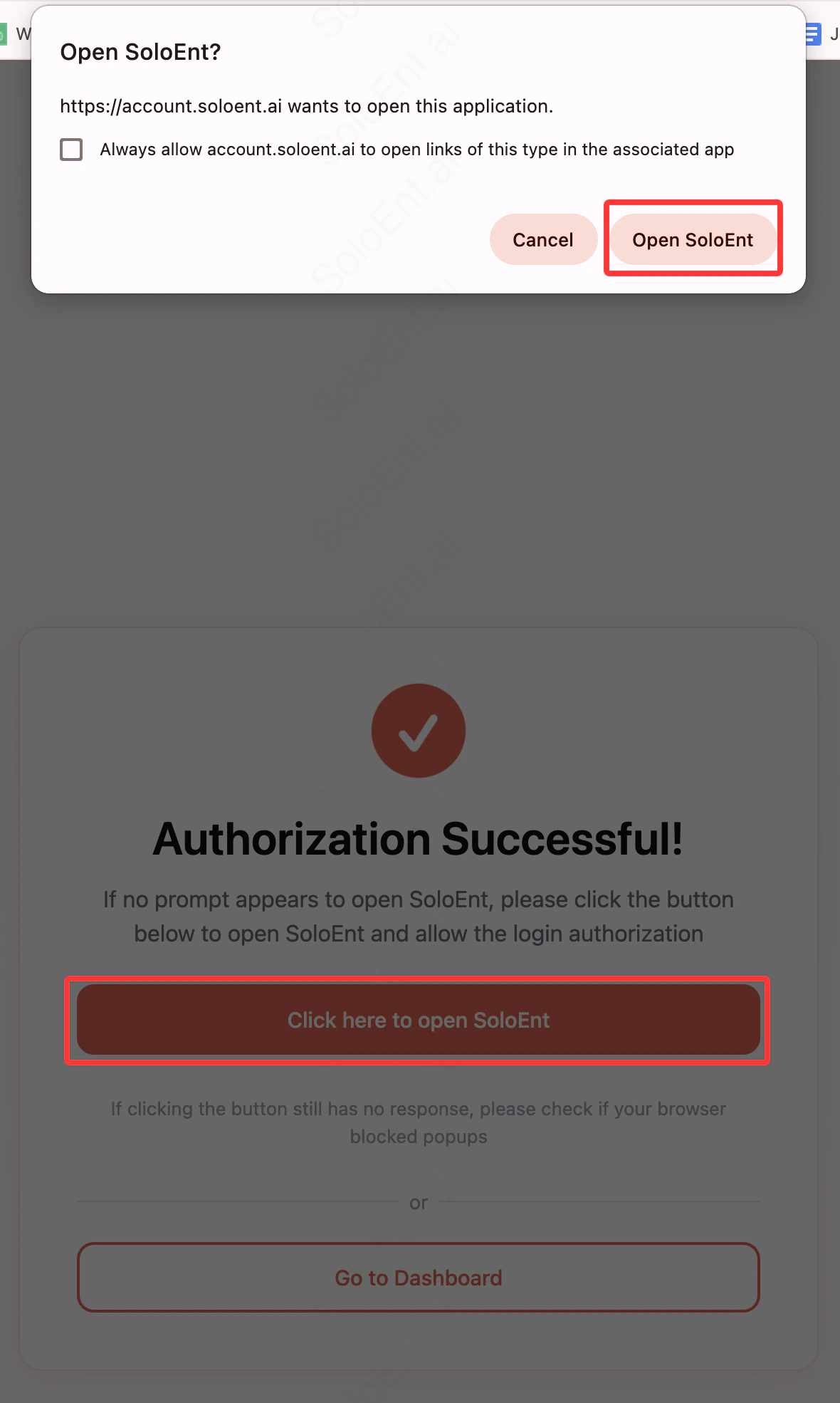 If nothing happens, the browser is likely blocking pop-ups. In Chrome: **Settings → Privacy and security → Site settings** (controls location, camera, **pop-ups**, etc.), then allow pop-ups and redirects for `account.soloent.ai`.
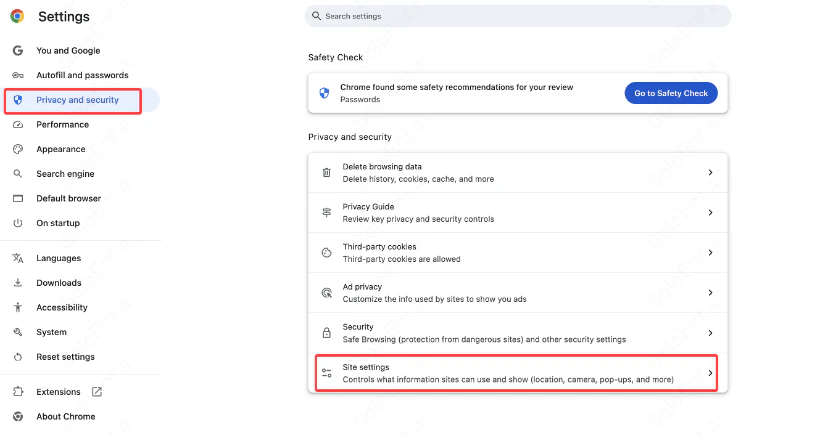 Under **Site settings**, open **Pop-ups and redirects**, allow SoloEnt-related sites, and try logging in again.
## Can't find the subscription entry
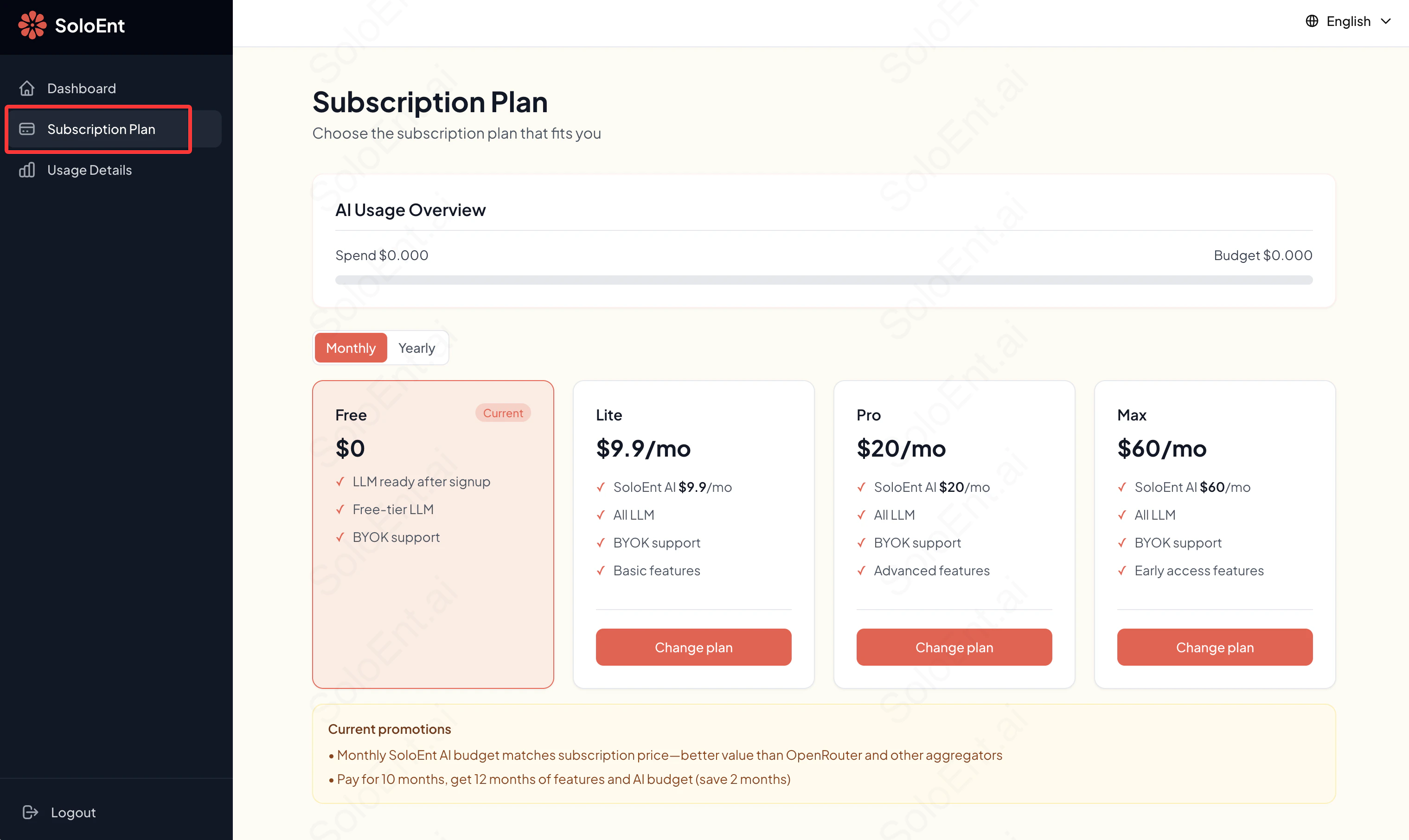
There are two ways to open the subscription dashboard:
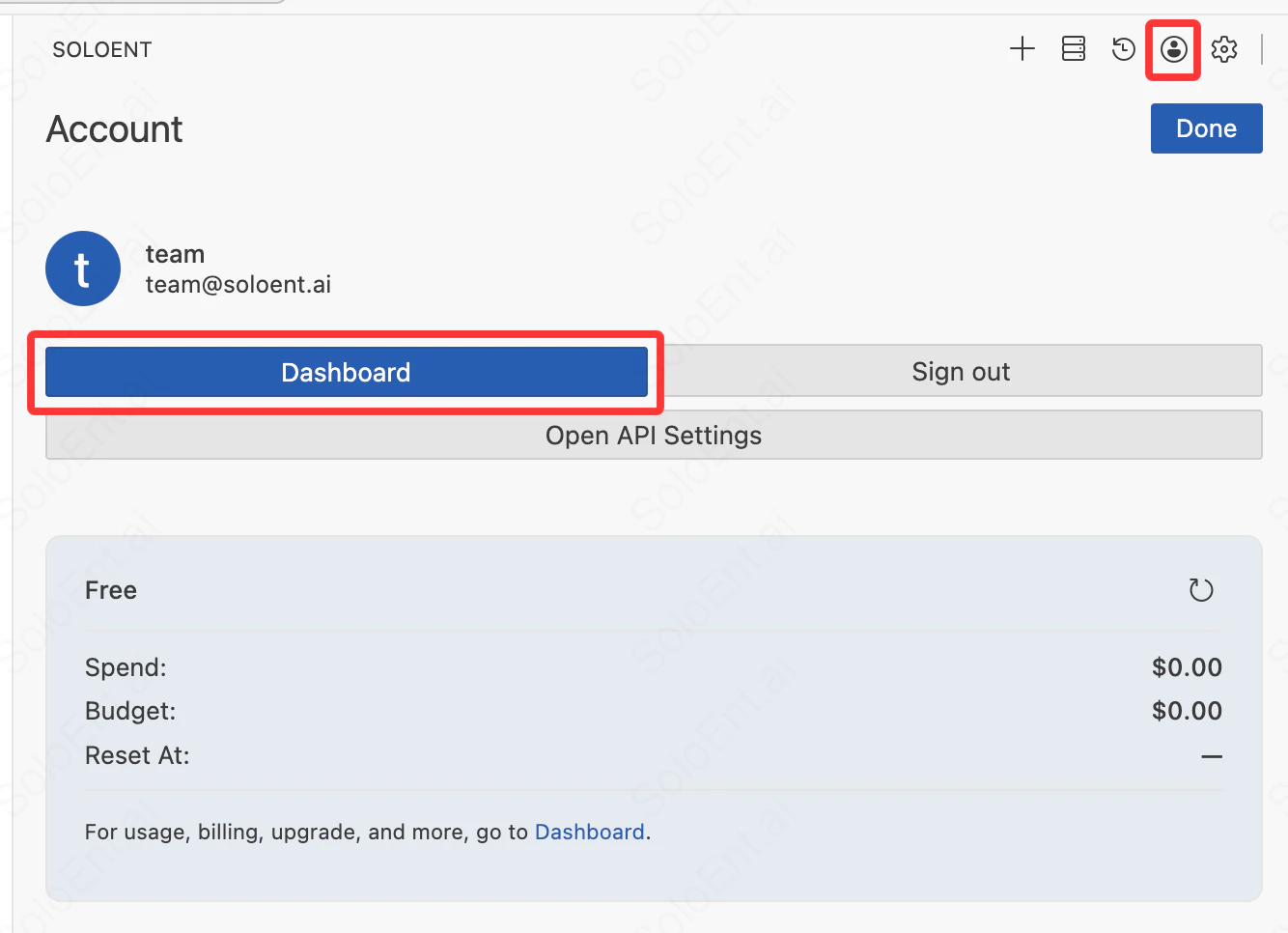
* **Option 1:** Click your account avatar, choose **Dashboard**, and go to [account.soloent.ai/en/dashboard](https://account.soloent.ai/en/dashboard/)
Under **Site settings**, open **Pop-ups and redirects**, allow SoloEnt-related sites, and try logging in again.
## Can't find the subscription entry
There are two ways to open the subscription dashboard:
* **Option 1:** Click your account avatar, choose **Dashboard**, and go to [account.soloent.ai/en/dashboard](https://account.soloent.ai/en/dashboard/)
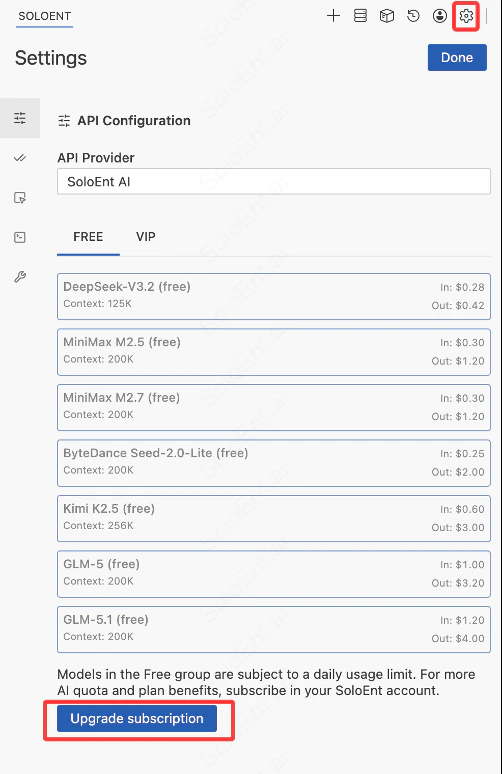
 * **Option 2** (from v0.3.5): Open in-app **Settings** (gear) → **API Configuration**, then click **Upgrade subscription** under the free model list
 In the web console, open the **Subscription Plan** tab and pick Lite, Pro, or Max and monthly or yearly billing.
 ## Can I cancel and get a refund? What if I run out of quota?
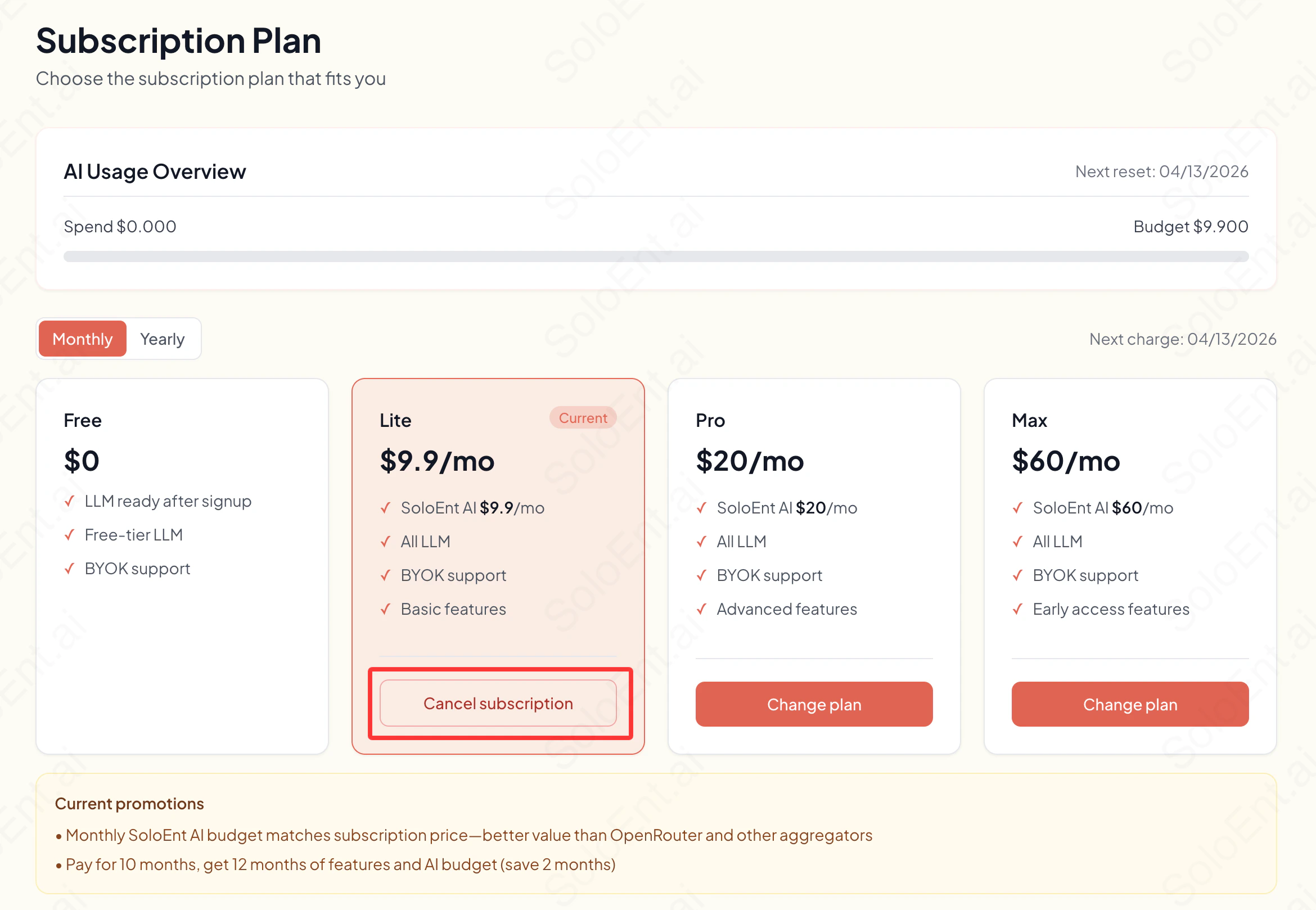
In the dashboard, the active plan shows **Cancel subscription**. Confirm to cancel.
* Cancellations do **not** refund the current period. Benefits last until the end of the cycle; auto-renew stops
* If your quota is exhausted, you can upgrade to a higher tier or **purchase additional credits** separately (note: credits cannot be purchased without an active subscription)
Top-up credits apply to the current billing cycle only and **do not carry over** — they reset on renewal or plan change.
See [Manage subscription](/en/subscription/manage-subscription) and [Make the payment](/en/subscription/make-the-payment).
## Can I cancel and get a refund? What if I run out of quota?
In the dashboard, the active plan shows **Cancel subscription**. Confirm to cancel.
* Cancellations do **not** refund the current period. Benefits last until the end of the cycle; auto-renew stops
* If your quota is exhausted, you can upgrade to a higher tier or **purchase additional credits** separately (note: credits cannot be purchased without an active subscription)
Top-up credits apply to the current billing cycle only and **do not carry over** — they reset on renewal or plan change.
See [Manage subscription](/en/subscription/manage-subscription) and [Make the payment](/en/subscription/make-the-payment).
 ## How do I configure a third-party API key
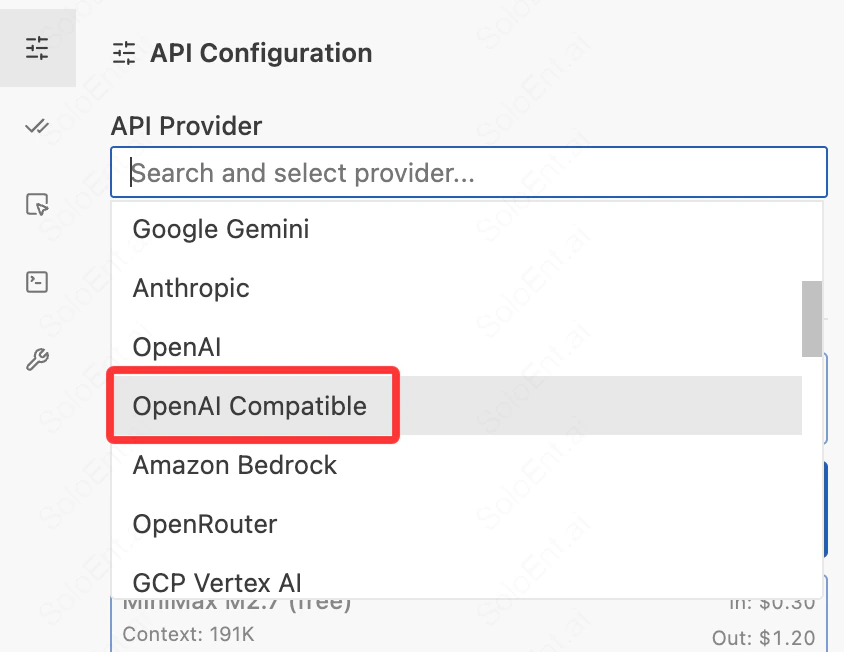
Most third-party providers use **OpenAI Compatible**—choose it from the **API Provider** dropdown in settings.
You must fill in all three fields:
* **Base URL**
* **API Key**
* **Model ID**
If it still fails, verify these three first. Confirm with your provider before purchase; some services may be unreliable.
See [API configuration](/en/quickstart/api-configuration).
## How do I configure a third-party API key
Most third-party providers use **OpenAI Compatible**—choose it from the **API Provider** dropdown in settings.
You must fill in all three fields:
* **Base URL**
* **API Key**
* **Model ID**
If it still fails, verify these three first. Confirm with your provider before purchase; some services may be unreliable.
See [API configuration](/en/quickstart/api-configuration).
 ## The Agent panel is not showing in my preferred language
From **v0.3.8**, the Agent panel has two independent language settings. Make sure you are on the latest version, then click the settings icon in the top-right corner of the Agent panel and look under General settings:
* **Preferred Language**: Controls the language the AI uses when replying
* **Interface Language**: Controls the display language of the Agent panel UI (menus, buttons, etc.). Supports English, 简体中文, 日本語, 한국어, and Español
If you switch the main interface language but the Agent panel still shows in English, check that **Interface Language** has been switched. See [Language settings](/en/quickstart/language-settings).
## Agent doesn't create files / save files / keeps asking me to save
Check both of the following.
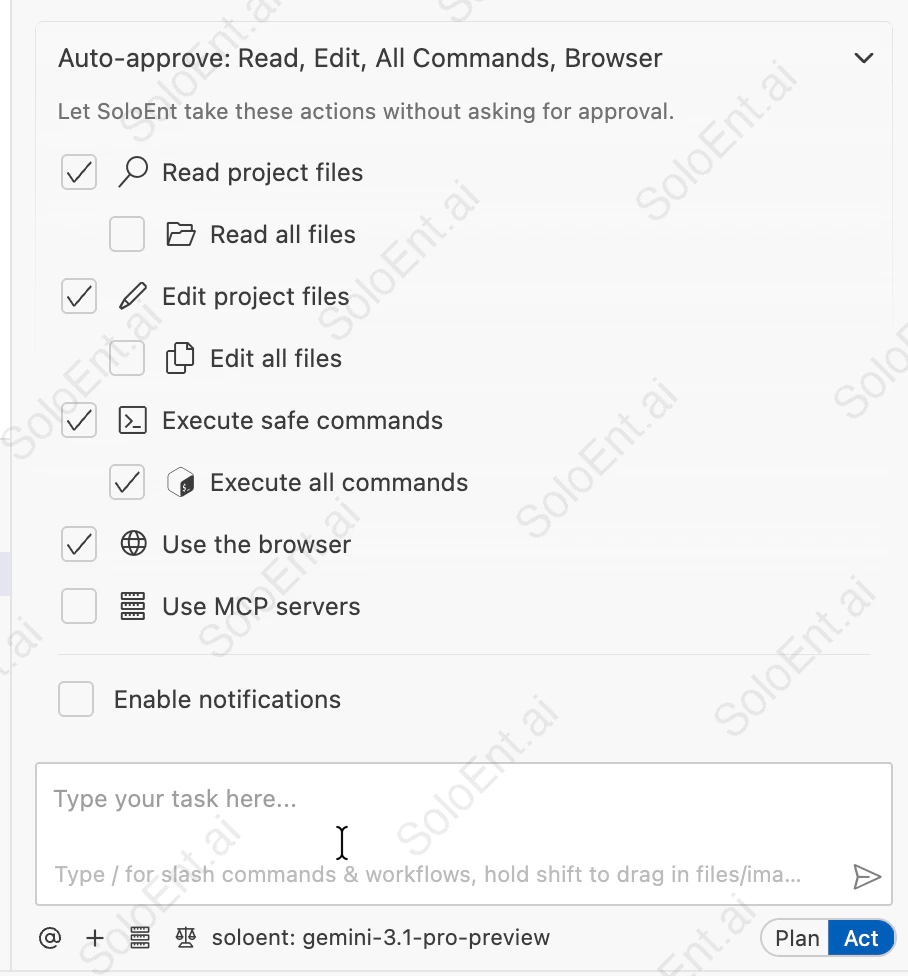
**1. Auto-approve**\
In **Agent settings → Auto-approve** (or equivalent), whether **Edit** is allowed to write project files. When on, the Agent can change files directly; when off, you often confirm each write. See [Auto-approve](/en/quickstart/auto-approve).
## The Agent panel is not showing in my preferred language
From **v0.3.8**, the Agent panel has two independent language settings. Make sure you are on the latest version, then click the settings icon in the top-right corner of the Agent panel and look under General settings:
* **Preferred Language**: Controls the language the AI uses when replying
* **Interface Language**: Controls the display language of the Agent panel UI (menus, buttons, etc.). Supports English, 简体中文, 日本語, 한국어, and Español
If you switch the main interface language but the Agent panel still shows in English, check that **Interface Language** has been switched. See [Language settings](/en/quickstart/language-settings).
## Agent doesn't create files / save files / keeps asking me to save
Check both of the following.
**1. Auto-approve**\
In **Agent settings → Auto-approve** (or equivalent), whether **Edit** is allowed to write project files. When on, the Agent can change files directly; when off, you often confirm each write. See [Auto-approve](/en/quickstart/auto-approve).
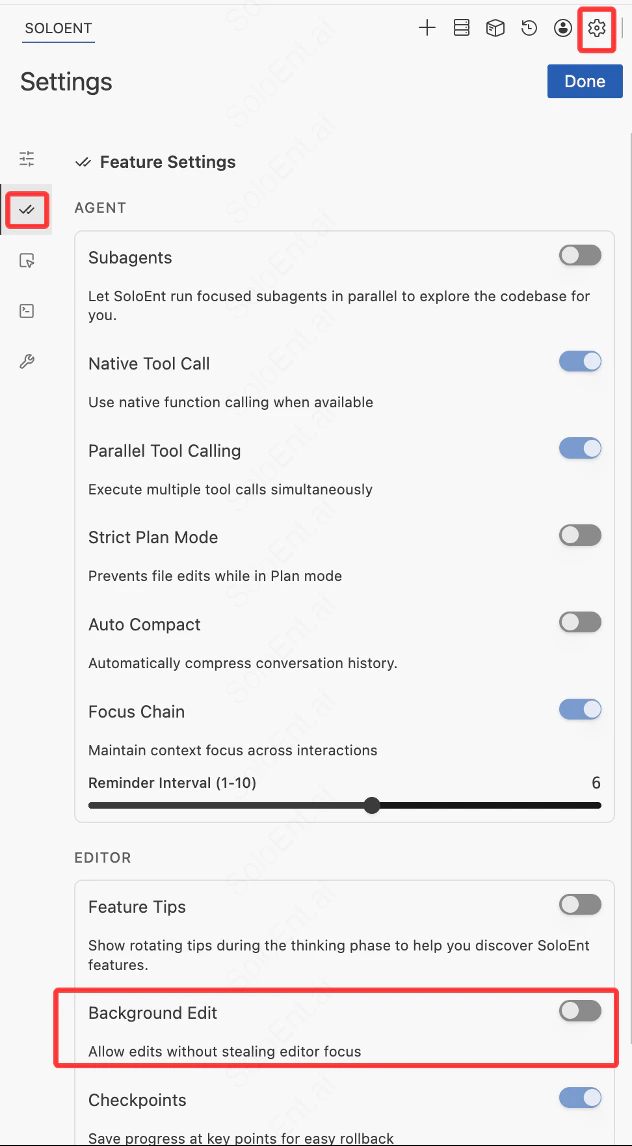
 **2. Background Edit**\
Under **Settings → Feature Settings** (double-checkmark icon on the left), the **EDITOR** section’s **Background Edit** controls whether the Agent may edit **without stealing editor focus**. Turn it off if you want to review every change yourself first.
**2. Background Edit**\
Under **Settings → Feature Settings** (double-checkmark icon on the left), the **EDITOR** section’s **Background Edit** controls whether the Agent may edit **without stealing editor focus**. Turn it off if you want to review every change yourself first.
 ## Git install prompt (and checkpoints)
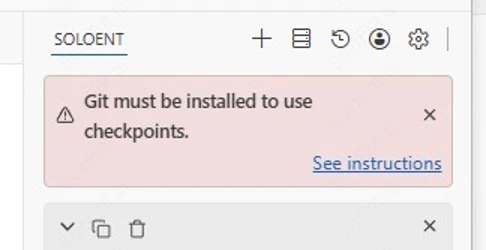
Windows users may see this prompt the first time they launch SoloEnt. It means Git is not installed, but **this does not affect normal use**.
Git is used to save checkpoints during a conversation, letting you roll back to an earlier state and start over from there. macOS usually includes Git by default; Windows requires manual installation. If you don’t need checkpoint rollback, you can ignore this for now. To enable it, download Git from [git-scm.com](https://git-scm.com).
## Git install prompt (and checkpoints)
Windows users may see this prompt the first time they launch SoloEnt. It means Git is not installed, but **this does not affect normal use**.
Git is used to save checkpoints during a conversation, letting you roll back to an earlier state and start over from there. macOS usually includes Git by default; Windows requires manual installation. If you don’t need checkpoint rollback, you can ignore this for now. To enable it, download Git from [git-scm.com](https://git-scm.com).
 ## What is the context window? When should I start a new session?
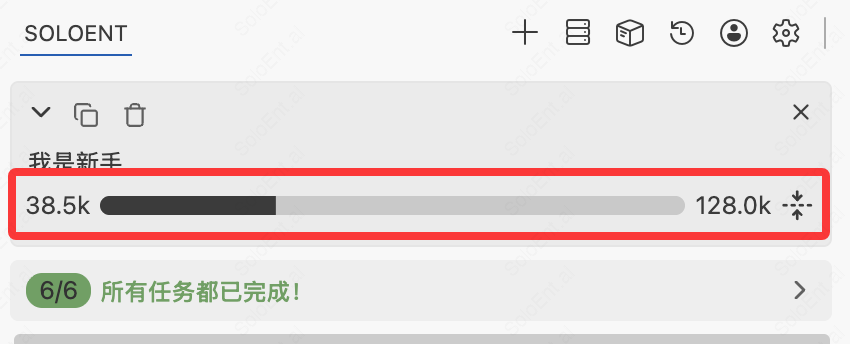
Every session has a context length limit. You can see how much context you've used in the bar above the chat — for example, **38.5k / 128.0k** means 38.5k tokens used out of a 128k limit.
## What is the context window? When should I start a new session?
Every session has a context length limit. You can see how much context you've used in the bar above the chat — for example, **38.5k / 128.0k** means 38.5k tokens used out of a 128k limit.
 When a lot of context is consumed, the model's memory of earlier content becomes unreliable, and it may lose focus on longer tasks. Consider opening a new session when:
* The current task is done and you're starting a new, unrelated one
* Context usage is around 60–70% and the model feels like it's "forgetting"
* You're switching to a completely different topic
**Recommended approach for long-form writing**: Use `/init` to generate `SOLOENT.md` in your project, and write key context into it — characters, outline, current progress. Each new session can then reload the full project picture by reading `SOLOENT.md`, rather than relying on accumulated in-session context. Opening new sessions regularly actually helps the model stay focused and on-task.
See the [SOLOENT.md guide](/en/tips/SoloEnt).
## Why doesn't my project auto-generate SOLOENT.md anymore
Starting from **v0.2.0**, `SOLOENT.md` is **no longer created automatically**. Use `/init` whenever you want, at any project stage; short projects that don’t need cross-session context can skip it.
When a lot of context is consumed, the model's memory of earlier content becomes unreliable, and it may lose focus on longer tasks. Consider opening a new session when:
* The current task is done and you're starting a new, unrelated one
* Context usage is around 60–70% and the model feels like it's "forgetting"
* You're switching to a completely different topic
**Recommended approach for long-form writing**: Use `/init` to generate `SOLOENT.md` in your project, and write key context into it — characters, outline, current progress. Each new session can then reload the full project picture by reading `SOLOENT.md`, rather than relying on accumulated in-session context. Opening new sessions regularly actually helps the model stay focused and on-task.
See the [SOLOENT.md guide](/en/tips/SoloEnt).
## Why doesn't my project auto-generate SOLOENT.md anymore
Starting from **v0.2.0**, `SOLOENT.md` is **no longer created automatically**. Use `/init` whenever you want, at any project stage; short projects that don’t need cross-session context can skip it.