> ## Documentation Index
> Fetch the complete documentation index at: https://docs.soloent.ai/llms.txt
> Use this file to discover all available pages before exploring further.
# Language Settings
> Configure interface and Agent language
Set your preferred language for the SoloEnt interface and AI Agent.
## Two language settings
Menus, buttons, and UI elements
AI conversation language
## Setting interface language
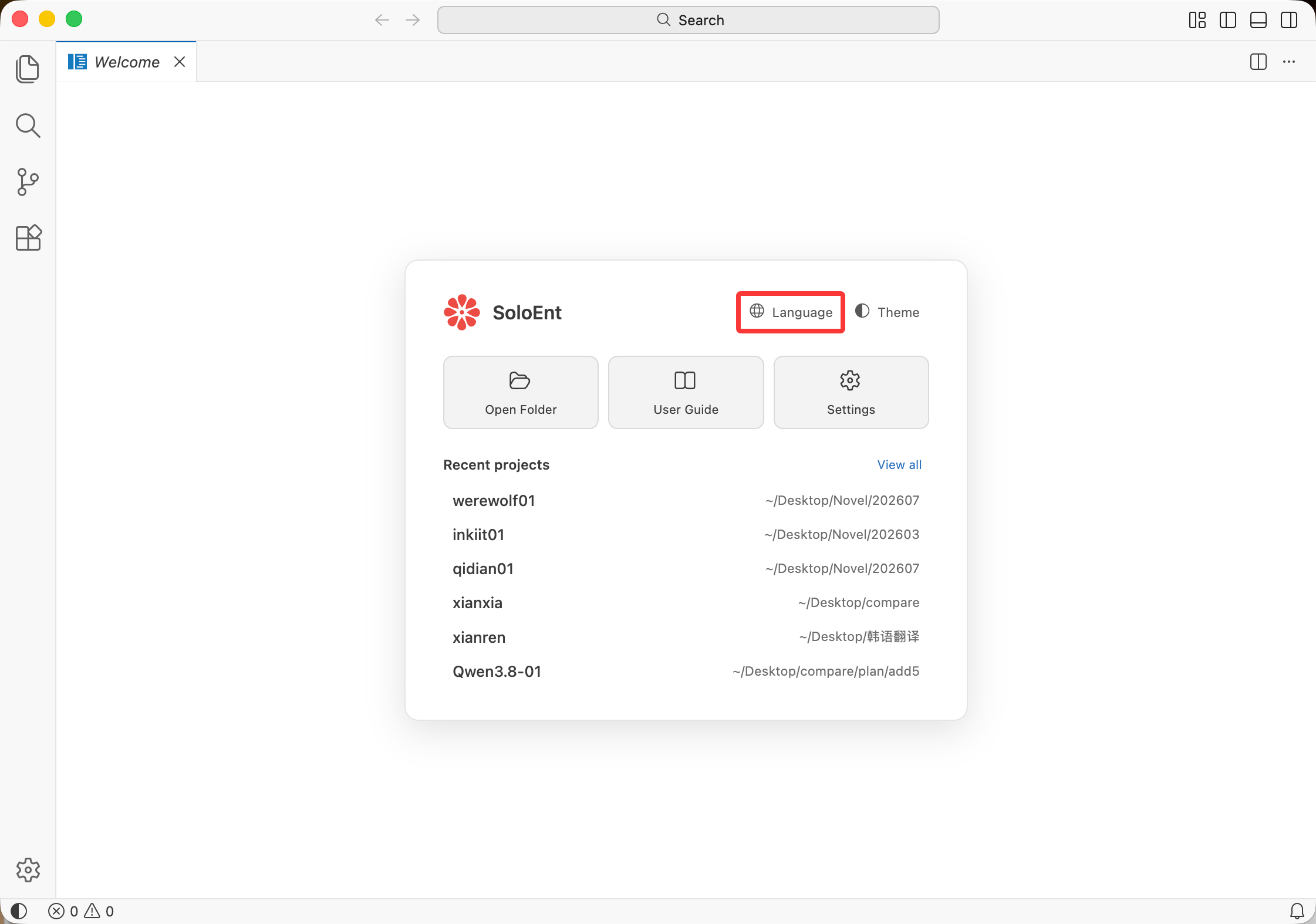
### On first launch
The welcome screen lets you choose your interface language.
 ## Setting Agent language
The Agent language must be set independently.
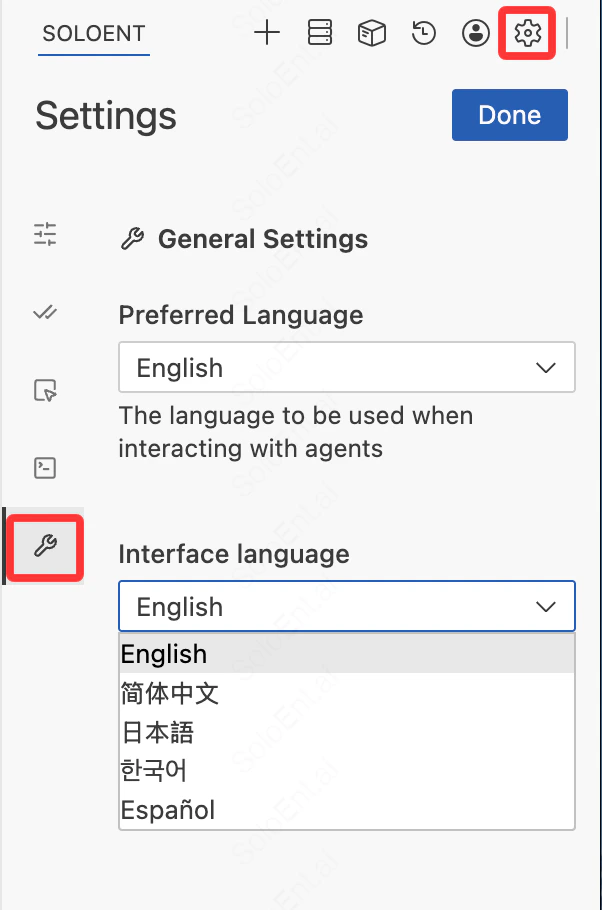
Click the **settings icon** in the top-right corner of the Agent panel. Under General Settings, you can configure the following two options:
* **Preferred Language**: Sets the language AI uses when replying — this is the language you receive responses in during conversations with the Agent
* **Interface Language**: Sets the display language of the Agent panel itself. Supports English, 简体中文, 日本語, 한국어, and Español
## Setting Agent language
The Agent language must be set independently.
Click the **settings icon** in the top-right corner of the Agent panel. Under General Settings, you can configure the following two options:
* **Preferred Language**: Sets the language AI uses when replying — this is the language you receive responses in during conversations with the Agent
* **Interface Language**: Sets the display language of the Agent panel itself. Supports English, 简体中文, 日本語, 한국어, and Español
 ## Next steps
Customize visual appearance
Configure API settings
## Next steps
Customize visual appearance
Configure API settings