> ## Documentation Index
> Fetch the complete documentation index at: https://docs.soloent.ai/llms.txt
> Use this file to discover all available pages before exploring further.
# Git Version Control
> Initialize your project as a local Git repo, commit snapshots at key milestones, and roll back to a version you are happy with
SoloEnt lets you version-control your whole project (workspace) with Git. You can initialize the open project as a **local repository** (no internet or remote hosting required), commit staged progress as snapshots while writing, and later roll the entire project back to a satisfactory point if you are not happy with the AI's subsequent changes.
## Initialize the repository
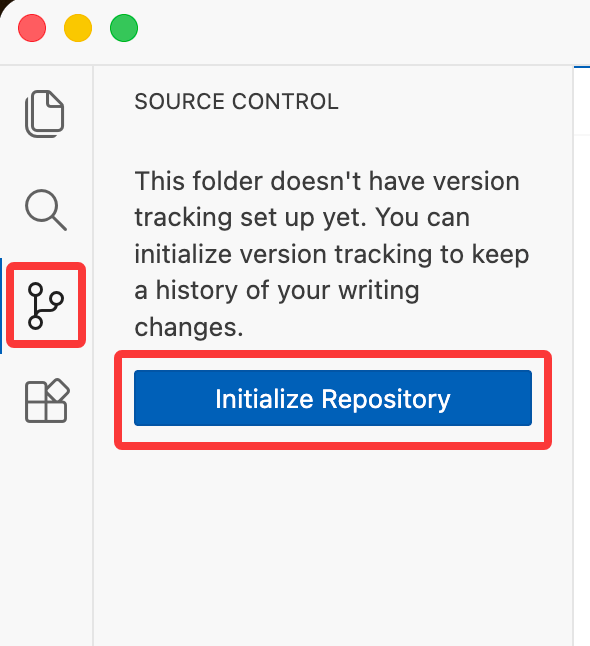
In the left sidebar, select the third tab (**Source Control**) and click **Initialize Repository** to turn the current project into a local Git repo.
 ## Commit changes
After initializing, each time you finish a task you can commit the changes to the repository from the Source Control panel.
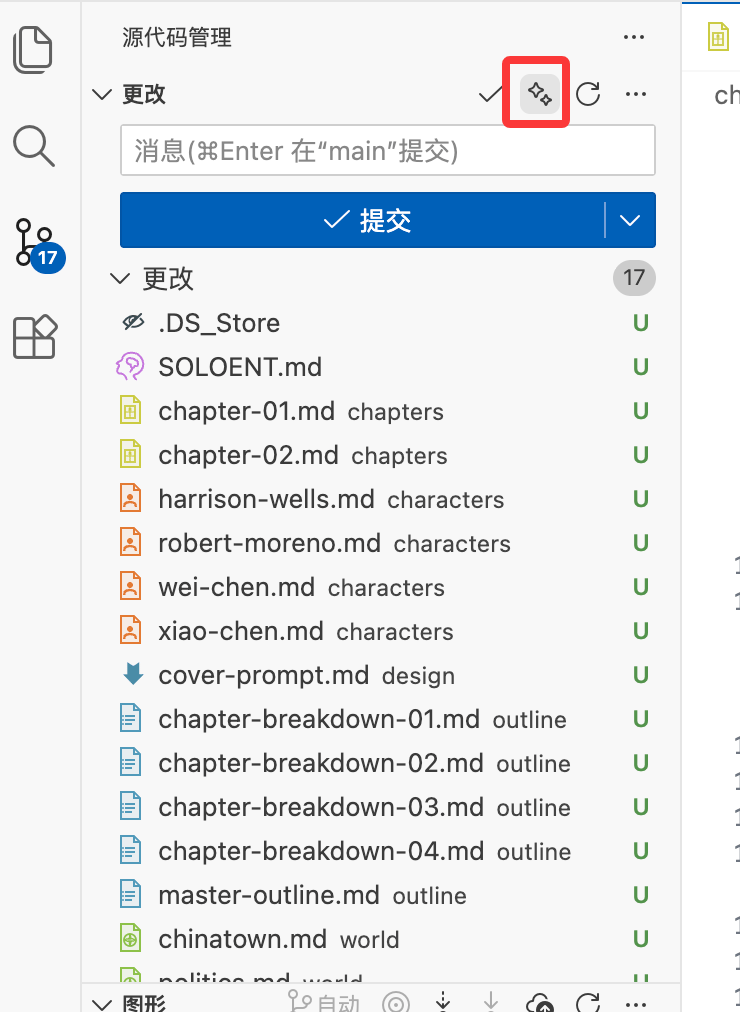
The left side of the panel lists the files changed this time (new files are marked **U**).
Click the second icon in the top-right of the panel to auto-generate a commit message with SoloEnt's **commit summary** feature.
After confirming the message, click **Commit** to save this change as a version checkpoint.
## Commit changes
After initializing, each time you finish a task you can commit the changes to the repository from the Source Control panel.
The left side of the panel lists the files changed this time (new files are marked **U**).
Click the second icon in the top-right of the panel to auto-generate a commit message with SoloEnt's **commit summary** feature.
After confirming the message, click **Commit** to save this change as a version checkpoint.
 ## When to commit
If you are worried that a version's content might later be lost or messed up, commit after each **milestone task**, for example:
* Finishing the outline for the whole book
* Finishing the first 10 chapters
* Making a major worldbuilding or setting change
That way, if you later feel the AI's edits aren't good, you can roll the whole project back to a previously committed checkpoint and start over.
The more frequently and cleanly you commit, the easier it is to find that clean "before it got messed up" version when rolling back.
Use `SOLOENT.md` to record the full picture of your project so every new session can quickly restore context
Check here for issues like the "install Git" prompt and checkpoints
## When to commit
If you are worried that a version's content might later be lost or messed up, commit after each **milestone task**, for example:
* Finishing the outline for the whole book
* Finishing the first 10 chapters
* Making a major worldbuilding or setting change
That way, if you later feel the AI's edits aren't good, you can roll the whole project back to a previously committed checkpoint and start over.
The more frequently and cleanly you commit, the easier it is to find that clean "before it got messed up" version when rolling back.
Use `SOLOENT.md` to record the full picture of your project so every new session can quickly restore context
Check here for issues like the "install Git" prompt and checkpoints