> ## Documentation Index
> Fetch the complete documentation index at: https://docs.soloent.ai/llms.txt
> Use this file to discover all available pages before exploring further.
# Plan Mode
> Understand when and how to use Plan Mode for strategic planning
Plan Mode helps you think through complex writing tasks before taking action. It's designed for situations where you need to explore ideas, clarify requirements, and create a strategy before making changes.
## Switching between modes
You can switch between Plan Mode and Act Mode using the mode selector in the bottom-left corner of the SoloEnt Agent chat window.
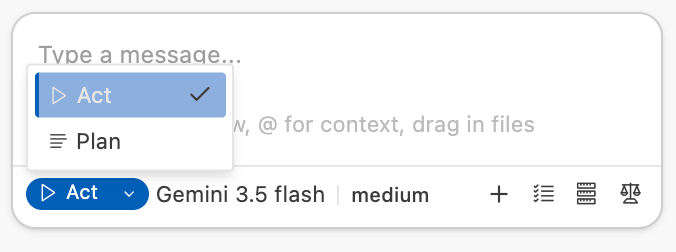 Think first, act later
Execute tasks immediately
## Plan Mode: "Think before you act"
In Plan Mode, the AI's primary task is to understand your requirements and create a blueprint. It won't immediately modify files or execute commands. Instead, it will confirm with you: "Here's what I plan to do."
### When to use Plan Mode
When you're beginning a new work with only a rough concept (for example: "I want to write a science fiction novel"), Plan Mode helps you explore and structure your ideas.
When you encounter difficult writing situations that require external input and discussion (such as writer's block or uncertainty about plot progression).
When you need to make large-scale changes that affect multiple files or require careful consideration of trade-offs.
### How Plan Mode works
The AI examines your request and identifies key challenges and requirements.
It creates a detailed action plan with clear steps and rationale.
Before taking any action, it presents the plan for your approval.
You can discuss, modify, and improve the plan until you're satisfied.
### Key characteristics
Ideal for handling complex requirements that need multiple rounds of discussion and clarification.
Shows you the plan without modifying your documents.
Explains why certain approaches are recommended, helping you identify gaps and improvements.
Encourages dialogue and refinement before execution.
In Plan Mode, SoloEnt Agent will not execute any tasks or generate any files. It only provides strategic guidance and planning.
## Act Mode: "Just do it"
Once you switch to Act Mode, the AI becomes an executor. It will directly perform operations based on established goals or identified steps.
### When to use Act Mode
Use Act Mode when your task is very clear and specific:
* "Generate an outline for the first 10 chapters"
* "Change the protagonist's name to Wang"
* "Create a character profile for the antagonist"
* During normal writing sessions when you know what you want
For most regular writing tasks, Act Mode is the default choice. Only switch to Plan Mode when you need strategic thinking and planning.
### How Act Mode works
The AI recognizes what needs to be done based on your request.
It performs the necessary actions without asking for confirmation.
Based on your feedback, it refines or modifies the results.
### Key characteristics
Skips repeated confirmations and delivers results directly.
Can automatically create files, modify content, and run commands.
You see changes and results right away.
Focuses on execution rather than discussion.
If you notice your Agent is only providing suggestions without executing or generating files, check if you're in Plan Mode.
## Choosing the right mode
Use this decision tree to select the appropriate mode:
```mermaid theme={null}
graph TD
A[New task] --> B{Is the task clear and specific?}
B -->|Yes| C[Use Act Mode]
B -->|No| D{Do you need to explore options?}
D -->|Yes| E[Use Plan Mode]
D -->|No| F{Are there multiple approaches?}
F -->|Yes| E
F -->|No| C
E --> G[Discuss and refine plan]
G --> H{Plan approved?}
H -->|Yes| I[Switch to Act Mode]
H -->|No| G
I --> C
C --> J[Execute task]
```
## Best practices
When beginning a new writing project, use Plan Mode to establish structure, characters, and plot before diving into writing.
Once you have a clear plan, switch to Act Mode to implement it efficiently.
If you encounter writer's block or need to make significant changes, switch back to Plan Mode to think through options.
When restructuring your work or making large-scale changes, Plan Mode helps you avoid mistakes and maintain consistency.
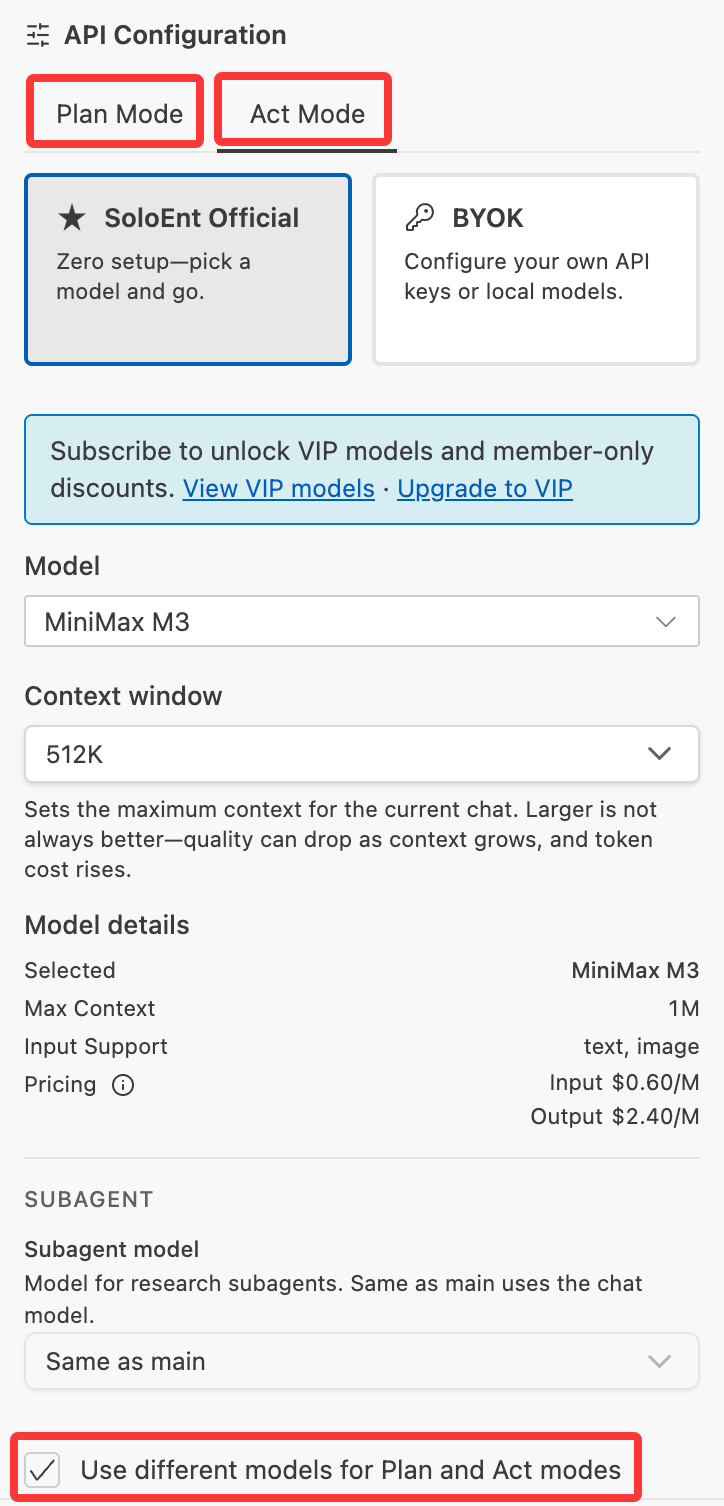
## Configure different models for different modes
Official models let you quickly configure different models for **Plan Mode** and **Act Mode**:
* Some models are more organized during planning and improve back-and-forth clarification, such as Sonnet 4.6 and GLM-5;
* Some models are closer to what execution needs — more concise, or lower cost — such as Gemini and DeepSeek;
Setting them separately isn't required; it suits power users who understand different models deeply.
Think first, act later
Execute tasks immediately
## Plan Mode: "Think before you act"
In Plan Mode, the AI's primary task is to understand your requirements and create a blueprint. It won't immediately modify files or execute commands. Instead, it will confirm with you: "Here's what I plan to do."
### When to use Plan Mode
When you're beginning a new work with only a rough concept (for example: "I want to write a science fiction novel"), Plan Mode helps you explore and structure your ideas.
When you encounter difficult writing situations that require external input and discussion (such as writer's block or uncertainty about plot progression).
When you need to make large-scale changes that affect multiple files or require careful consideration of trade-offs.
### How Plan Mode works
The AI examines your request and identifies key challenges and requirements.
It creates a detailed action plan with clear steps and rationale.
Before taking any action, it presents the plan for your approval.
You can discuss, modify, and improve the plan until you're satisfied.
### Key characteristics
Ideal for handling complex requirements that need multiple rounds of discussion and clarification.
Shows you the plan without modifying your documents.
Explains why certain approaches are recommended, helping you identify gaps and improvements.
Encourages dialogue and refinement before execution.
In Plan Mode, SoloEnt Agent will not execute any tasks or generate any files. It only provides strategic guidance and planning.
## Act Mode: "Just do it"
Once you switch to Act Mode, the AI becomes an executor. It will directly perform operations based on established goals or identified steps.
### When to use Act Mode
Use Act Mode when your task is very clear and specific:
* "Generate an outline for the first 10 chapters"
* "Change the protagonist's name to Wang"
* "Create a character profile for the antagonist"
* During normal writing sessions when you know what you want
For most regular writing tasks, Act Mode is the default choice. Only switch to Plan Mode when you need strategic thinking and planning.
### How Act Mode works
The AI recognizes what needs to be done based on your request.
It performs the necessary actions without asking for confirmation.
Based on your feedback, it refines or modifies the results.
### Key characteristics
Skips repeated confirmations and delivers results directly.
Can automatically create files, modify content, and run commands.
You see changes and results right away.
Focuses on execution rather than discussion.
If you notice your Agent is only providing suggestions without executing or generating files, check if you're in Plan Mode.
## Choosing the right mode
Use this decision tree to select the appropriate mode:
```mermaid theme={null}
graph TD
A[New task] --> B{Is the task clear and specific?}
B -->|Yes| C[Use Act Mode]
B -->|No| D{Do you need to explore options?}
D -->|Yes| E[Use Plan Mode]
D -->|No| F{Are there multiple approaches?}
F -->|Yes| E
F -->|No| C
E --> G[Discuss and refine plan]
G --> H{Plan approved?}
H -->|Yes| I[Switch to Act Mode]
H -->|No| G
I --> C
C --> J[Execute task]
```
## Best practices
When beginning a new writing project, use Plan Mode to establish structure, characters, and plot before diving into writing.
Once you have a clear plan, switch to Act Mode to implement it efficiently.
If you encounter writer's block or need to make significant changes, switch back to Plan Mode to think through options.
When restructuring your work or making large-scale changes, Plan Mode helps you avoid mistakes and maintain consistency.
## Configure different models for different modes
Official models let you quickly configure different models for **Plan Mode** and **Act Mode**:
* Some models are more organized during planning and improve back-and-forth clarification, such as Sonnet 4.6 and GLM-5;
* Some models are closer to what execution needs — more concise, or lower cost — such as Gemini and DeepSeek;
Setting them separately isn't required; it suits power users who understand different models deeply.
 ## Common scenarios
### Scenario 1: Starting a new novel
Discuss genre, themes, characters, and plot structure.
Iterate on the plan until you're satisfied with the direction.
Begin writing chapters based on the approved plan.
### Scenario 2: Fixing a plot hole
Analyze the plot hole and explore potential solutions.
Discuss pros and cons of different approaches.
Select the best approach for your story.
Implement the chosen solution.
### Scenario 3: Daily writing session
For routine writing tasks, Act Mode is more efficient.
Focus on producing content without interruption.
Only switch if you encounter a major decision point.
## Troubleshooting
**Problem:** The Agent only provides suggestions without taking action.
**Solution:** Check if you're in Plan Mode. Switch to Act Mode to enable execution.
**Problem:** The Agent makes changes without asking for approval.
**Solution:** You're in Act Mode. Switch to Plan Mode if you want to review plans before execution.
**Problem:** The Agent spends too much time planning.
**Solution:** If your task is straightforward, switch to Act Mode for faster results.
**Problem:** The proposed plan doesn't match your vision.
**Solution:** Stay in Plan Mode and continue the discussion. Provide more context or constraints to refine the plan.
## Next steps
Learn how to start a new writing project with SoloEnt
Explore the writing and editing capabilities
Understand SoloEnt's writing methodology
Master the command system for efficient writing
## Common scenarios
### Scenario 1: Starting a new novel
Discuss genre, themes, characters, and plot structure.
Iterate on the plan until you're satisfied with the direction.
Begin writing chapters based on the approved plan.
### Scenario 2: Fixing a plot hole
Analyze the plot hole and explore potential solutions.
Discuss pros and cons of different approaches.
Select the best approach for your story.
Implement the chosen solution.
### Scenario 3: Daily writing session
For routine writing tasks, Act Mode is more efficient.
Focus on producing content without interruption.
Only switch if you encounter a major decision point.
## Troubleshooting
**Problem:** The Agent only provides suggestions without taking action.
**Solution:** Check if you're in Plan Mode. Switch to Act Mode to enable execution.
**Problem:** The Agent makes changes without asking for approval.
**Solution:** You're in Act Mode. Switch to Plan Mode if you want to review plans before execution.
**Problem:** The Agent spends too much time planning.
**Solution:** If your task is straightforward, switch to Act Mode for faster results.
**Problem:** The proposed plan doesn't match your vision.
**Solution:** Stay in Plan Mode and continue the discussion. Provide more context or constraints to refine the plan.
## Next steps
Learn how to start a new writing project with SoloEnt
Explore the writing and editing capabilities
Understand SoloEnt's writing methodology
Master the command system for efficient writing