
Switching between modes
You can switch between Plan Mode and Act Mode using the mode selector in the bottom-right corner of the SoloEnt Agent chat window.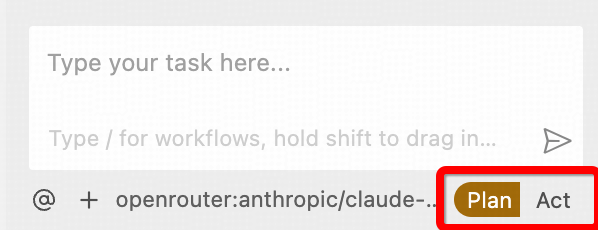
Plan Mode
Think first, act later
Act Mode
Execute tasks immediately
Plan Mode: “Think before you act”
In Plan Mode, the AI’s primary task is to understand your requirements and create a blueprint. It won’t immediately modify files or execute commands. Instead, it will confirm with you: “Here’s what I plan to do.”When to use Plan Mode
Starting a new project with vague ideas
Starting a new project with vague ideas
When you’re beginning a new work with only a rough concept (for example: “I want to write a science fiction novel”), Plan Mode helps you explore and structure your ideas.
Facing complex writing challenges
Facing complex writing challenges
When you encounter difficult writing situations that require external input and discussion (such as writer’s block or uncertainty about plot progression).
Making significant structural changes
Making significant structural changes
When you need to make large-scale changes that affect multiple files or require careful consideration of trade-offs.
How Plan Mode works
Key characteristics
Strategic thinking
Ideal for handling complex requirements that need multiple rounds of discussion and clarification.
High safety
Shows you the plan without modifying your documents.
Transparent reasoning
Explains why certain approaches are recommended, helping you identify gaps and improvements.
Collaborative
Encourages dialogue and refinement before execution.
Act Mode: “Just do it”
Once you switch to Act Mode, the AI becomes an executor. It will directly perform operations based on established goals or identified steps.When to use Act Mode
Use Act Mode when your task is very clear and specific:- “Generate an outline for the first 10 chapters”
- “Change the protagonist’s name to Wang”
- “Create a character profile for the antagonist”
- During normal writing sessions when you know what you want
How Act Mode works
Key characteristics
High efficiency
Skips repeated confirmations and delivers results directly.
Automated
Can automatically create files, modify content, and run commands.
Immediate feedback
You see changes and results right away.
Action-oriented
Focuses on execution rather than discussion.
If you notice your Agent is only providing suggestions without executing or generating files, check if you’re in Plan Mode.
Choosing the right mode
Use this decision tree to select the appropriate mode:Best practices
Start with Plan Mode for new projects
Start with Plan Mode for new projects
When beginning a new writing project, use Plan Mode to establish structure, characters, and plot before diving into writing.
Switch to Act Mode for execution
Switch to Act Mode for execution
Once you have a clear plan, switch to Act Mode to implement it efficiently.
Return to Plan Mode when stuck
Return to Plan Mode when stuck
If you encounter writer’s block or need to make significant changes, switch back to Plan Mode to think through options.
Use Plan Mode for major revisions
Use Plan Mode for major revisions
When restructuring your work or making large-scale changes, Plan Mode helps you avoid mistakes and maintain consistency.
Common scenarios
Scenario 1: Starting a new novel
Scenario 2: Fixing a plot hole
Scenario 3: Daily writing session
Troubleshooting
Agent not executing tasks
Agent not executing tasks
Problem: The Agent only provides suggestions without taking action.Solution: Check if you’re in Plan Mode. Switch to Act Mode to enable execution.
Agent executing without confirmation
Agent executing without confirmation
Problem: The Agent makes changes without asking for approval.Solution: You’re in Act Mode. Switch to Plan Mode if you want to review plans before execution.
Planning takes too long
Planning takes too long
Problem: The Agent spends too much time planning.Solution: If your task is straightforward, switch to Act Mode for faster results.
Need to modify the plan
Need to modify the plan
Problem: The proposed plan doesn’t match your vision.Solution: Stay in Plan Mode and continue the discussion. Provide more context or constraints to refine the plan.