

/ followed by the workflow filename in the editor to invoke one — for example, /bookcover.md.
Writing is a multi-stage process, and each stage can be broken down into smaller steps to achieve better results. Drafting an outline, expanding it into a volume plan, then refining each batch of chapters through four or five quality passes — each of these tasks involves remembering a dozen steps, working in the right order, and updating files one by one. Miss a step and you start over. Workflows turn these multi-step processes into a single command. Type /chapteroutline.md and the Agent loads your story settings, produces chapter outlines, and waits for your confirmation before continuing. Every subsequent batch reuses the same command. You just review and decide.
Invoking a workflow
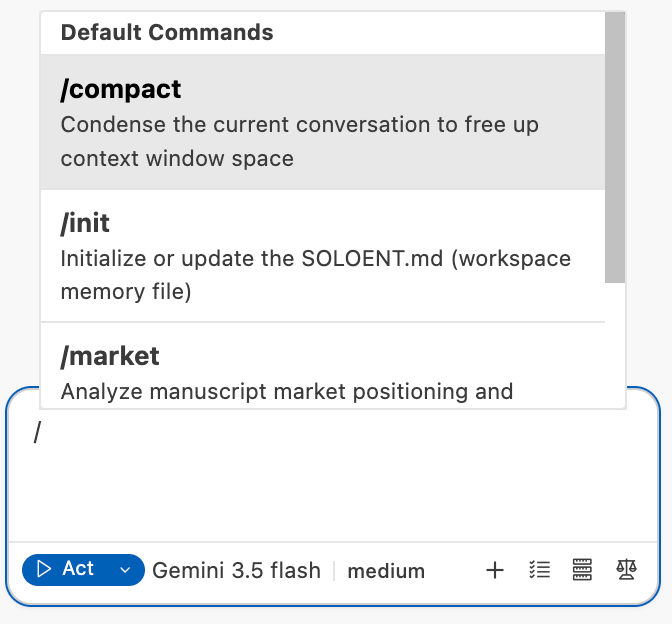
Type/ in the chat input and SoloEnt shows all available workflows. Keep typing to filter by filename — /book will match bookcover.md. Select a workflow and press Enter to start it.
Where workflows live
Workflows can be stored in two locations: your writing project directory or a system-level global directory. Global workflows are stored in the system-level directory and are available across all projects. Use them for general-purpose processes like cover prompt generation, standard manuscript review checklists, or publishing prep. Workspace workflows live in.soloent/workflows/ at your project root. Use them for processes tied to a specific project — the pacing logic for this book’s chapter outlines, or the quality checks specific to this series.
Toggling workflows
Every workflow has a toggle to control whether it appears in the/ menu, without deleting the file.
Workflows never run on their own — they only execute when you invoke them with a command.
Creating a workflow
1
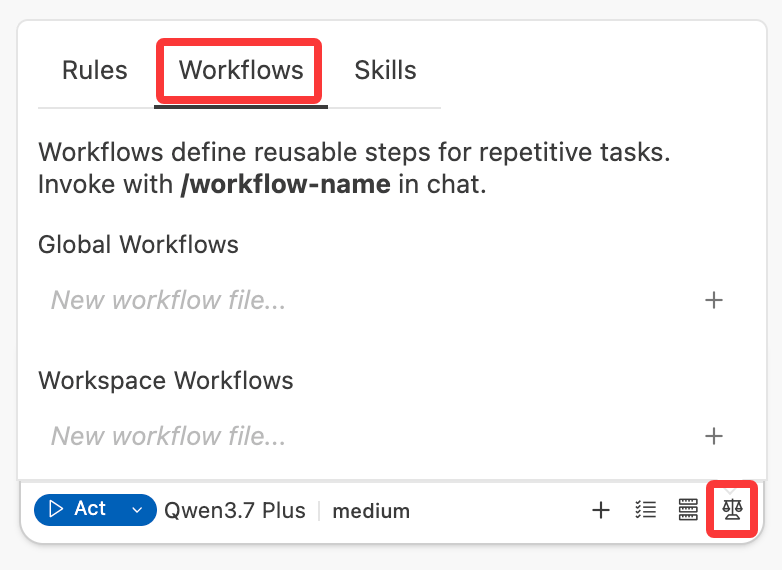
Open the Workflows menu
Click the fourth icon from the left in the Agent panel,and switch the Workflows manager.
2
Create a new workflow file
Click “New workflow file…”, enter a filename (e.g.,
bookcover) and click on ”+”. The file is created with a .md extension.3
Write your workflow steps
Add a title and steps in Markdown format. Describe what each step should accomplish.
Workflow structure
A workflow is a Markdown file with a title and numbered steps. The filename is the command:bookcover.md is invoked with /bookcover.md.
Steps can be written at different levels of detail:
- High-level instructions: “Analyze the novel outline and extract the protagonist’s character traits” — let the Agent decide how to execute
- Precise control: Use specific format requirements or templates — when you need a fixed output
What workflows can contain
Natural language instructions
Write steps in plain language and the Agent will interpret and execute them:Precise template control
When you need a fixed output format, embed the template directly in the workflow:Example workflows
Book cover prompt generation
This workflow reads the novel first before generating a cover prompt, so the result reflects the story’s actual tone rather than a generic description.Batch chapter outline generation
This workflow breaks a novel’s chapter outlines into manageable batches. Each batch is confirmed before moving on, so you’re never handed more than you can review at once.Writing effective workflows
- Start simple. Write steps in natural language first. Only add precise templates when you need a fixed output format.
- Be explicit about decision points. If a step requires a choice from you, state it clearly: “Wait for the author to confirm before continuing.”
- Specify failure handling. Tell the Agent what to do when something is missing: “If the information is incomplete, ask the author — do not assume.”
- Keep workflows focused.
bookcover.mdhandles covers.chapteroutline.mdhandles chapter outlines. Split complex processes into separate workflows that can run independently.
Workflows vs. Commands
The built-in commands (/review, /market) are workflows SoloEnt ships out of the box, designed by writing specialists and ready to use without any setup. Workflows are ones you define yourself, fully customized to your project and process.
The two complement each other: use built-in commands for standardized quality checks, and custom workflows to automate what’s unique to your writing process.
Troubleshooting
The Agent is skipping steps or not pausing for confirmation
The Agent is skipping steps or not pausing for confirmation
The Agent advances automatically unless explicitly told to wait.
- Add a clear pause instruction at every decision point: “Wait for the author to confirm before continuing”
- Avoid writing steps as a continuous block — break them into distinct numbered sections so the Agent treats each as a separate stage
- If a step is being skipped entirely, check whether its instructions are reachable (not buried inside a template block the Agent misread as an example)
The workflow can't find my project files
The workflow can't find my project files
Most likely cause: The file paths in the workflow don’t match your actual project structure.
- Use relative paths from the project root (e.g.,
SOLOENT.md,chapters/ch-01.md) - If the workflow reads
SOLOENT.mdand the file doesn’t exist yet, the Agent may fail silently — add a fallback instruction: “If SOLOENT.md is missing, ask the author for the required information” - Workspace workflows run in the context of the open project folder — make sure the correct project is open when you invoke the command
A workspace workflow isn't overriding the global workflow of the same name
A workspace workflow isn't overriding the global workflow of the same name
Workspace workflows take precedence — but only if the names match exactly.
- Check that the filename (including extension) is identical:
chapteroutline.mdvschapteroutline.md - A single character difference in the name means both workflows exist independently and neither overrides the other
- Verify the workspace workflow is saved in
.soloent/workflows/at the project root, not in a subdirectory
The workflow is modifying files I didn't expect it to touch
The workflow is modifying files I didn't expect it to touch
Workflows run with your full permissions and can read and modify any file in your project.
- Review the workflow’s steps before running it, especially if it came from an external source
- If an unexpected file was modified, check whether any step contains a broad instruction like “update all chapter files” — make the scope explicit
- For workflows that write output files, specify the exact target path in the step to prevent the Agent from choosing its own location
More Advanced Tips
Commands
Learn about SoloEnt’s built-in /review and /market commands
Rules
Capture your writing habits in Rules to use alongside your workflows