

Single file conversion
Convert individual.docx files to Markdown:
1
Locate the file
Find your
.docx file in the file manager.2
Right-click
Right-click on the file to open the context menu.
3
Convert
Select Convert to Markdown from the menu.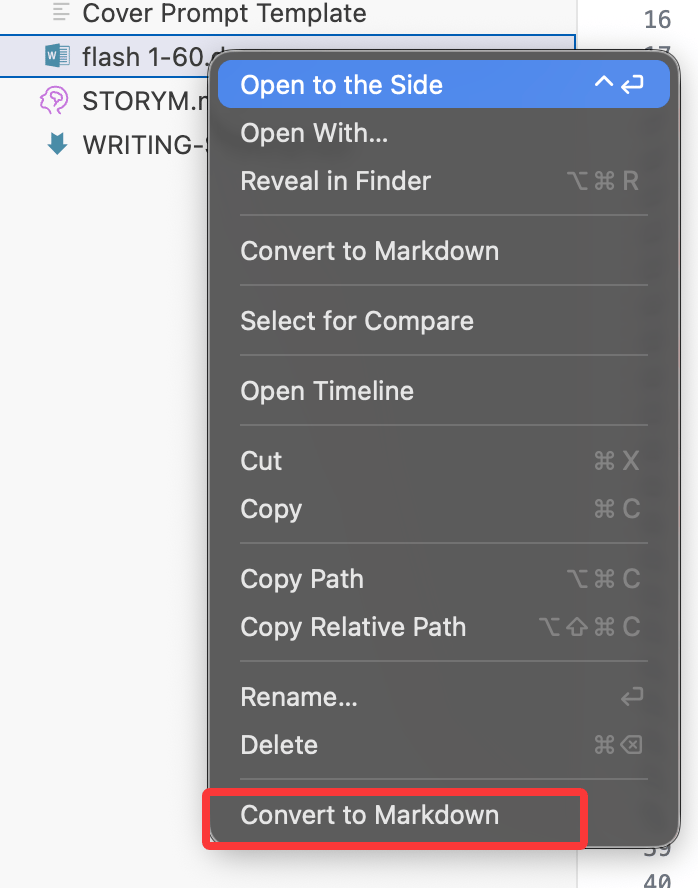
4
Wait for completion
The file converts automatically. A new
.md file appears in the same location.The original
.docx file remains unchanged. The converted Markdown file is created as a new file.Batch conversion
Convert multiple Word documents at once using the “Markdown Hub” plugin:1
Install Markdown Hub
- Click the Extensions icon in the left sidebar (third icon)
- Search for “Markdown Hub”
- Click Install (it’s free)
2
Organize files
Place all
.docx files you want to convert in the same folder.3
Right-click folder
Right-click on the folder containing your
.docx files.4
Convert all
Select “Convert to Markdown” to batch convert all documents in the folder.
Supported formats
Markdown (
.md) is SoloEnt’s native format. All editing features work best with Markdown files.Conversion quality
What converts well
- Text content: Paragraphs, headings, lists
- Basic formatting: Bold, italic, underline
- Structure: Chapters, sections, subsections
What may need adjustment
- Complex tables: May require manual formatting
- Images: Need to be manually placed in the images folder
- Custom styles: Convert to standard Markdown formatting
- Comments and tracked changes: Not preserved
After conversion
1
Review content
Open the converted Markdown file and check for formatting issues.
2
Fix formatting
Adjust any elements that didn’t convert cleanly.
3
Organize files
Move files to appropriate folders (chapters, outline, etc.).
4
Start editing
Begin working with your imported content.
Best practices
Prepare Word documents
Prepare Word documents
- Use standard styles (Heading 1, 2, 3, etc.)
- Avoid complex formatting
- Remove unnecessary styling before conversion
Test with one file first
Test with one file first
- Convert a single file to check quality
- Adjust your Word document if needed
- Then proceed with batch conversion
Backup originals
Backup originals
- Keep your original
.docxfiles - Store backups before converting
- You can always reconvert if needed
Troubleshooting
Conversion fails
Conversion fails
- Ensure file is a valid
.docxformat - Check file isn’t corrupted or password-protected
- Try opening and resaving in Word
- Convert to
.txtfirst as a workaround
Formatting looks wrong
Formatting looks wrong
- This is normal for complex documents
- Manually adjust Markdown formatting
- Simplify original Word document and reconvert
Can't find converted file
Can't find converted file
- Check the same folder as the original
- Look for a file with the same name but
.mdextension - Refresh the file manager
Next steps
Editor features
Learn Markdown editing
Organize project
Structure your imported files